All Controls and How to Change
Palworld’s controls can feel a little overwhelming at first. With so many actions and interactions, it’s important to have a setup that feels comfortable and efficient. This guide breaks down all the controls for both keyboard and controller, showing you how to customize them to perfectly fit your playstyle. Whether you’re battling Pal forces, crafting essential gear, or simply exploring the vast world, mastering the controls is key to survival and success. Let’s get started!
Keyboard Controls: Your Foundation
The keyboard controls in Palworld are your primary interface for most actions. They’re generally quite responsive and provide a solid base for gameplay. Let’s start with the basics:
- Movement: WASD keys control your character’s movement – straightforward and intuitive.
- Jump: Spacebar.
- Sprint: Shift key. Holding this will drain stamina.
- Summon Pal / Ride Skill 2: E key. Summons your active Pal or activates its riding skill 2.
- Inventory: Tab key. Opens your inventory for examining and equipping items.
- Menu: Escape key. Brings up the main menu, allowing you to pause, access settings, and more.
- Aim / Cancel Pal Sphere: Right Mouse Button. Hold to aim, release to cancel throwing a Pal Sphere.
- Attack: Left Mouse Button. Your primary attack.
- Change Pal: 1 and 3 keys. Quickly cycle between your active Pals.
- Throw Pal Sphere: Q key. Launches a Pal Sphere to capture Pals.
Many of these controls can be customized, which is incredibly important for optimizing your experience. If you find yourself repeatedly pressing the wrong key, don’t hesitate to change it!
Controller Controls: Precision and Comfort
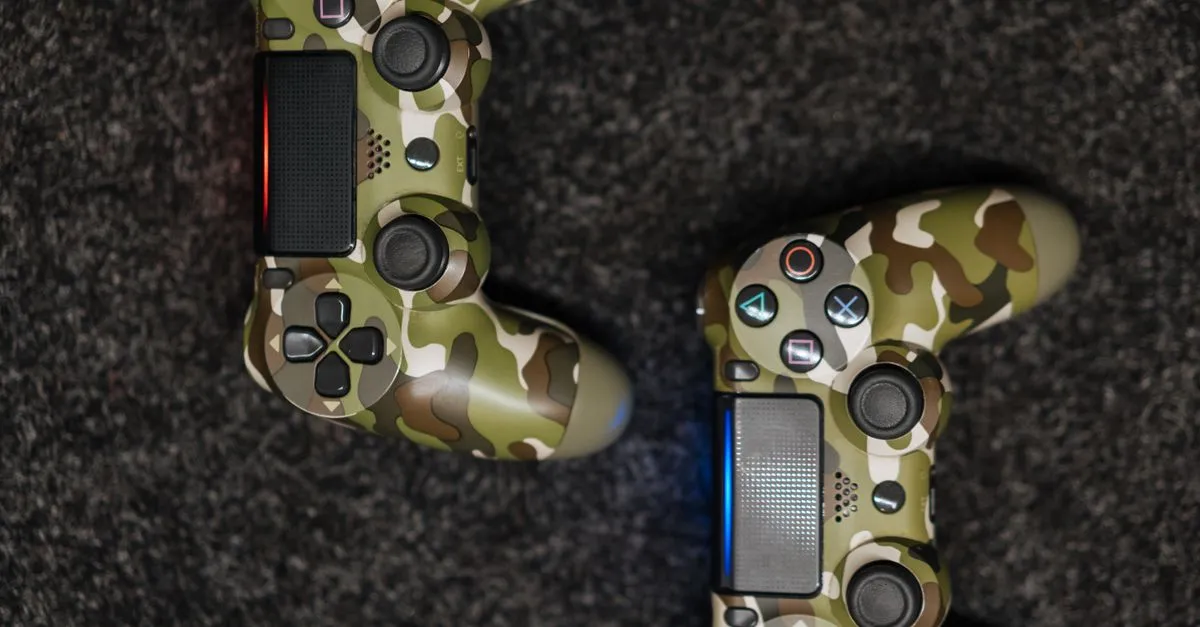
If you’re a controller player, Palworld offers a surprisingly robust and comfortable control scheme. It feels much more natural than some games that force you to rebind everything. Here’s a breakdown:
- Left Stick: Movement. Simple and effective.
- Right Stick: Camera Control. Tilting the right stick allows for smooth panning and zooming.
- X Button: Partner Skill / Reload. Activates your Pal’s partner skill or reloads your weapon.
- A Button: Jump. Your standard jump action.
- B Button: Crouch / Roll / Ride Skill 3. Used for sliding, dodging, and special riding moves.
- Y Button: Change Weapon. Cycle through your equipped weapons.
- Left Stick (Click): Sprint. Click the left stick to sprint. LB: Summon Pal / Ride Skill 2. RB: Throw Pal Sphere.
- LT: Aim / Cancel Pal Sphere throw. RT: Attack / Riding Skill 1.
- D-Pad: Change Pal (left/right) and Change Sphere (down).
The controller setup feels incredibly responsive, especially when battling large groups of Pal. The aiming with LT/RT is particularly useful for precision attacks.
Changing Keybinds: Tailoring Your Experience
Palworld’s control customization is surprisingly deep. You can change any keybind in the game, allowing you to create a setup that perfectly suits your preferences. Here’s how to do it:
- Open the Options Menu: Press the Escape key to open the main menu, then select “Options.”
- Navigate to Controls: In the Options menu, select “Controls.”
- Select an Action: You’ll see a list of all the game’s actions. Select the action you want to change.
- Confirmation Prompt: A message will pop-up, instructing you to press any key to replace the current keybind. Press your desired key to replace the keybind.
- Confirmation: A confirmation prompt will appear. Choose “Yes” to apply the changes.
Experiment with different keybindings until you find what feels most natural. Don’t be afraid to try unconventional keys – you might be surprised at what works best for you. It’s a good idea to create a save before making significant changes, just in case you don’t like the new configuration.
Strategic Pal Switching: Mastering Your Team
Managing your Pal team is critical to success in Palworld. Efficient Pal switching can make or break a battle. Consider these strategies:
- Type Synergy: Pair Pals with complementary abilities. For example, a Pal with high attack power might be best used alongside a Pal with healing or support abilities.
- Resource Management: Switch Pals based on the resources available. A Pal with high mining speed might be ideal for gathering materials, while a Pal with strong combat skills is better for fighting.
- Status Effects: Switch Pals to counter enemy status effects. A Pal with immunity to poison, for instance, can be swapped in to avoid taking damage from poisoned Pal.
- Practice: Spend time in training areas to get comfortable switching between Pals quickly and efficiently. Muscle memory is key!
Settings to Consider for Optimal Control
Beyond keybinds, several in-game settings can significantly impact your control experience. Experiment with these to find what works best for you:
- Controller Vibration: Turning vibration on or off can improve responsiveness. Some players find it distracting, while others find it helpful for providing feedback.
- Mouse Sensitivity (If Using Mouse & Keyboard): Adjust the mouse sensitivity to find a balance between precision and speed.
- Field of View (FOV): A wider FOV can improve situational awareness, but it can also make the game feel less stable.
- Camera Shake: Reducing camera shake can make aiming and combat feel more stable.
With a little tweaking, you can create a control setup that’s perfectly tailored to your playstyle in Palworld.
Do you find that customizing your controls has dramatically improved your Palworld experience?